Minecraft Server Ping Test — Fix High Ping and Lag
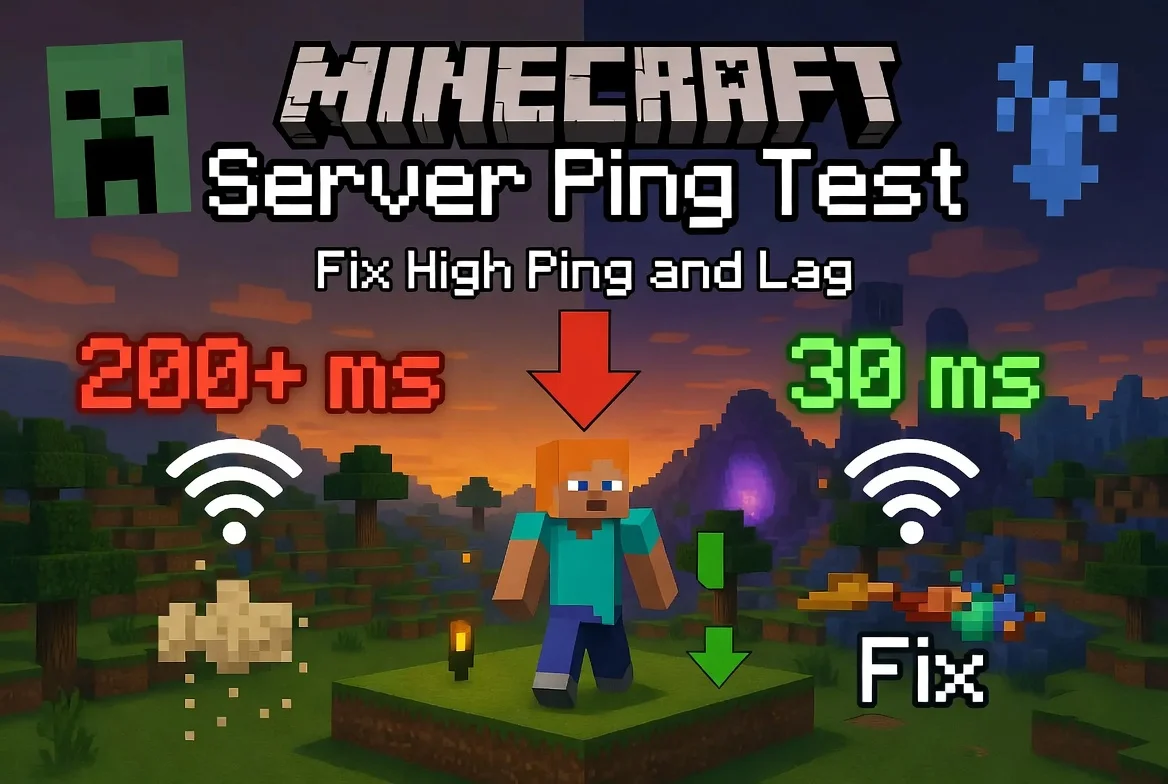
Whether you are building a massive redstone contraption on Hypixel or fighting for your life in a Minecraft PvP server, lag can turn the experience from magical to miserable. Unlike most online games, Minecraft servers are often player-hosted — which means your ping depends entirely on where that specific server lives. Before you start troubleshooting, test your Minecraft server ping to see exactly where you stand.
What Is Ping and Why It Matters in Minecraft
Ping measures the round-trip time for data to travel between your computer and the Minecraft server you are connected to, expressed in milliseconds. When you place a block, swing a sword, or open a chest, that action travels from your machine to the server, gets processed, and the result comes back. With low ping, everything feels instant. With high ping, you get that infuriating delay where blocks reappear after you break them, hits do not register in PvP, or you rubber-band back to a position you left two seconds ago.
What makes Minecraft unique in the world of online gaming is that there is no single company running all the servers. Games like Fortnite or Valorant use dedicated server infrastructure from their publishers. Minecraft, especially Java Edition, runs on servers hosted by communities, individuals, hosting providers, and Microsoft (for Realms). This means your ping to Server A could be 20ms while your ping to Server B is 200ms — all depending on where each server is physically located and how well it is provisioned.
Java Edition and Bedrock Edition also handle networking differently. Java Edition uses TCP (Transmission Control Protocol), which guarantees packet delivery but adds overhead for reordering and acknowledgment. Bedrock Edition uses RakNet, a UDP-based protocol that is lighter and faster but can drop packets. This is why Bedrock often feels smoother at the same ping value — it sacrifices reliability for speed, which is a better trade-off for gaming.
Ping Levels — What's Good and What's Unplayable
| Ping (ms) | Experience in Minecraft |
|---|---|
| 0–30 | Perfect. Block placement is instant. PvP combos land cleanly. No visible delay on any action. |
| 30–60 | Excellent. Almost indistinguishable from single-player. Very minor delay on fast PvP actions but completely playable for all content. |
| 60–100 | Good for survival and building. PvP starts getting noticeably delayed — sword hits register late, bow shots need more lead. |
| 100–150 | Mediocre. Block break/place delay becomes obvious. PvP is frustrating. Minigames with timing (parkour, TNT Run) become harder. |
| 150–250 | Poor. Rubber-banding on fast movement. Blocks ghost frequently. PvP is essentially broken — hits register so late that combo timing is impossible. |
| 250+ | Nearly unplayable. Severe rubberbanding, inventory desync, falling through blocks. You will get kicked from many servers with anti-cheat plugins. |
For competitive PvP (practice servers, UHC, Bedwars), stay under 60ms. For casual survival and building, anything under 150ms is workable.
How to Check Your Ping
Method 1: Online Ping Test (Fastest)
The easiest way to check your connection to Minecraft servers before you even launch the game.
- Go to NetVizor Minecraft Ping Test.
- The tool pings popular Minecraft server locations and hosting providers.
- You get latency readings to multiple regions within seconds.
- Compare your results to the table above to gauge your expected experience.
- Test at different times of day — evening hours when more players are online often show higher ping.
This is especially useful when you are choosing between servers hosted in different regions.
Method 2: In-Game
Minecraft has two built-in ways to check your ping during gameplay.
Tab list method: Press Tab to open the player list. Next to each player name, you will see signal bars (like a phone signal icon). Full green bars mean under 150ms, yellow means 150-300ms, and red means 300ms+. This is a rough estimate but gives you a quick read.
Debug screen method (Java Edition): Press F3 to open the debug screen. Look for the line that says "Integrated server" or shows your connection details. The "tx" and "rx" values show packets sent and received per second. More directly, the server list in the multiplayer menu shows your ping in milliseconds next to each server before you even join.
Bedrock Edition: Open Settings → General → scroll to "Show Coordinates" and related debug information. Alternatively, some Bedrock servers display ping in their custom scoreboard or HUD.
Method 3: Command Line
For a direct diagnostic, open your terminal and ping the server IP:
ping play.hypixel.net
Or for a private server:
ping your.server.ip.address
To check if a server's port is open and accepting connections (default Minecraft port is 25565):
Use the NetVizor Port Scanner to verify port 25565 is open on your target server. If the port is closed, the server is either offline or firewalled — no amount of ping optimization will help.
For a full route analysis:
traceroute play.hypixel.net
Or use NetVizor Traceroute for a visual hop-by-hop breakdown to identify where delays are occurring along the path.
Minecraft Server Regions — Complete List
Because Minecraft servers are distributed across many hosts, here are the most popular servers and their locations:
| Server / Network | Location | Expected Ping (Same Region) | Expected Ping (Cross-Region) |
|---|---|---|---|
| Hypixel | US East (New York area) | 10–40ms (NA East) | 80–130ms (EU), 150–250ms (Asia) |
| Mineplex | US Central | 20–50ms (NA) | 90–140ms (EU) |
| CubeCraft | Europe (Netherlands) | 10–30ms (EU) | 80–130ms (NA East), 200+ (Asia) |
| The Hive (Bedrock) | US / EU distributed | 20–60ms (varies) | Varies widely |
| Minecraft Realms (Java) | Regional (auto-selected) | 20–60ms | 80–200ms |
| Minecraft Realms (Bedrock) | Microsoft Azure (regional) | 20–60ms | Varies |
| Private servers (shared hosting) | Varies by host (OVH, Hetzner, etc.) | 10–40ms (same region) | Full cross-region latency |
| Self-hosted (home network) | Your location | 0–5ms (LAN) | Full internet latency |
When choosing a new server to play on, check where it is hosted first. A server with amazing gameplay but 200ms ping will feel worse than a simpler server at 30ms.
Why Your Ping Is High — 10 Common Causes
Server is geographically far away. Playing on a European server from North America adds a baseline 80-130ms that no fix can eliminate. Physics is physics.
Server is overloaded. Minecraft servers running on underpowered hardware with too many plugins or too many players will respond slowly. This shows up as high ping and TPS (ticks per second) lag.
Wi-Fi connection. Wi-Fi adds latency and introduces packet loss, especially on crowded 2.4GHz bands. Every wall between you and your router adds signal degradation.
Java Edition TCP overhead. Java Edition's use of TCP means every dropped packet triggers a retransmission, which stalls all subsequent packets (head-of-line blocking). This is worse on unstable connections.
Running mods or heavy resource packs. Client-side mods that add network features (minimaps that query the server, real-time map renderers) can increase the amount of data sent and received.
ISP routing issues. Your ISP might route your traffic through unnecessary hops. A traceroute can reveal if your packets are taking a scenic detour.
Background applications. Anything downloading or uploading on your network steals bandwidth. Windows Update, cloud storage sync, and other devices streaming video are common culprits.
Outdated Java version (Java Edition). The Java runtime affects networking performance. Older Java versions have less efficient networking stacks.
Server hosting quality. Cheap shared hosting providers oversell their hardware. The server might have the resources for normal play but choke during peak hours or events.
DNS resolution speed. Slow DNS can delay the initial connection and occasionally cause mid-session lookups. Test with NetVizor DNS Lookup to verify your DNS is responsive.
How to Fix High Ping — Complete Guide
Use a wired Ethernet connection. This eliminates Wi-Fi variability and can reduce your ping by 5-20ms while eliminating most packet loss issues. A Cat5e or Cat6 cable is cheap and makes a massive difference.
Choose servers in your region. This sounds obvious, but many players join popular servers without checking their location. If you are in Europe, look for EU-hosted servers first.
Close background applications. Shut down browsers, Discord (or at least disable video/screen share), cloud sync services, and anything that uses bandwidth. Check Task Manager for hidden bandwidth consumers.
Update Java (Java Edition). Download the latest Java from Adoptium (Temurin). Java 21+ has significant networking improvements over older versions. Ensure your Minecraft launcher points to the updated Java installation.
Optimize your DNS. Switch to Cloudflare DNS (1.1.1.1) or Google DNS (8.8.8.8). This speeds up the initial server name resolution and can improve routing. Verify the improvement with NetVizor DNS Lookup.
Reduce server render distance. If you run your own server, lowering the view-distance in server.properties from the default 10 to 6-8 reduces the amount of chunk data sent to each player, lowering bandwidth requirements.
Install performance mods. On Java Edition, use Fabric + Lithium + Sodium. Lithium specifically optimizes the networking and game logic, reducing the processing delay between receiving a server packet and rendering the result.
Disable Nagle's algorithm. On Windows, this TCP optimization batches small packets, adding latency. Disable it via the registry: HKEY_LOCAL_MACHINE\SYSTEM\CurrentControlSet\Services\Tcpip\Parameters\Interfaces\{your-adapter}\TcpNoDelay set to 1.
Restart your router. A simple power cycle clears routing table bloat and refreshes your connection to your ISP. Do this weekly if you experience consistent latency issues.
Check your internet speed. While speed does not equal ping, an overloaded connection raises latency. Test with NetVizor Internet Speed to make sure you are getting what you pay for.
Advanced Fixes
TCP optimization for Java Edition. Since Java Edition uses TCP, optimizing TCP behavior on your OS helps significantly. On Windows, set both TcpNoDelay and TcpAckFrequency to 1 in the registry for your network adapter. On Linux, you can use sysctl to set net.ipv4.tcp_low_latency = 1.
Port forwarding for self-hosted servers. Forward port 25565 (TCP for Java, UDP for Bedrock) on your router. Without proper port forwarding, players connecting to your server go through NAT translation that adds latency. Use NetVizor Port Scanner to confirm the port is accessible from outside your network.
DNS-over-HTTPS. Enable DoH in your browser or system settings to prevent ISP-level DNS interception that can slow resolution times. On Windows 11, this is a native option in Network Settings.
Server-side optimization. If you are a server admin, use Paper or Purpur instead of Vanilla. These forks have heavily optimized networking code. Tune paper.yml settings: set use-faster-eigencraft-redstone to true, lower entity-tracking-range, and configure max-auto-save-chunks-per-tick to reduce I/O spikes.
ISP-specific routing. Run a Traceroute to your favorite server. If you see a specific hop with high latency or packet loss, contact your ISP with the traceroute data and ask them to investigate the routing path.
Minecraft-Specific Settings That Affect Ping
Server resource packs. Servers that force-download large resource packs create long loading times and bandwidth spikes on join. If you are on a slow connection, this can temporarily affect your in-game ping as the download completes.
Entity render distance. In video settings, reducing entity render distance does not directly affect ping but reduces the amount of entity data your client needs to process, which can improve your game's responsiveness to incoming server packets.
Multiplayer chat settings. If you are on a very busy server with constant chat spam, the volume of chat packets can contribute to bandwidth usage. Hiding chat or using a client mod to filter messages can help on extremely slow connections.
Chunk loading settings (Bedrock). On Bedrock Edition, the client-side render distance setting directly affects how much chunk data the server sends you. Lowering it from 12 to 8 chunks reduces bandwidth requirements significantly.
Java launch arguments. Allocating proper RAM (not too much, not too little) to Minecraft ensures the garbage collector does not cause frame hitches that feel like lag. Use -Xms2G -Xmx4G as a starting point and adjust based on your system. The Aikar flags are recommended for server environments.
FAQ
Does my internet speed affect Minecraft ping? Bandwidth (speed) and latency (ping) are different measurements. A 10 Mbps connection and a 1 Gbps connection can have the same ping. However, if your bandwidth is fully saturated by other devices or downloads, your ping will increase because packets queue up waiting to be sent.
Why is my ping low but I still get lag? You might be experiencing server-side lag (low TPS) rather than network lag. If the server's TPS drops below 20, the game ticks slower regardless of your ping. Press F3 and check if the server TPS is shown, or ask an admin. Also, client-side FPS drops can feel like lag even with perfect ping.
Java Edition vs Bedrock — which has better ping? Bedrock generally feels smoother at the same ping level because it uses RakNet (UDP-based) instead of TCP. UDP does not wait for lost packets to be retransmitted before sending new ones, which means momentary packet loss does not cause the stutter that Java Edition experiences.
Can I reduce ping to Hypixel from Europe? Hypixel's servers are in North America, so European players will always have 80-130ms minimum. Using optimized DNS, wired Ethernet, and closing background apps can shave 10-20ms off your total, but you cannot beat the speed of light across the Atlantic. CubeCraft is a great European alternative for minigames.
Does OptiFine reduce ping? OptiFine primarily improves FPS, not ping. However, by reducing the client-side rendering load, your computer processes incoming server packets faster, which can make the game feel more responsive even at the same ping.
Why do I get kicked for "flying" when my ping is high? Anti-cheat plugins interpret rubber-banding (caused by high ping) as flying or speed hacking. When your position data arrives late and shows you moving faster than normal, the server flags it. There is no fix except lowering your ping or asking the server admin to adjust anti-cheat sensitivity.
Conclusion
Minecraft's decentralized server model means your ping experience varies wildly depending on which server you play on. The good news is that you have more control over the situation than in most games — you can choose servers near you, optimize your client and Java setup, and even run your own server for near-zero latency. Start by testing your Minecraft ping to establish your baseline, then apply the fixes above based on what you find.
Playing other games too? Check out the Fortnite Ping Test or use Traceroute and DNS Lookup for deeper network diagnostics. And if you are running a server, verify it is reachable with the Port Scanner.
Related Articles
 Guide
GuideEscape from Tarkov: Fix High Ping and Desync
Fix high ping in Escape from Tarkov to avoid desync and latency issues. Optimize your gameplay with better network performance.
 Guide
GuideEA FC 26 (FIFA) Ping Test — Fix High Lag & Reduce Latency
Discover how to fix high ping in EA FC 26 and reduce lag in FUT matches. Test your connection now and improve gameplay.
 Guide
GuideDiablo 4 High Ping Fix — Lower Latency on PC and Console
Discover how to fix high ping in Diablo 4 and enjoy smoother gameplay on PC and console with our expert tips.