Escape from Tarkov: Fix High Ping and Desync
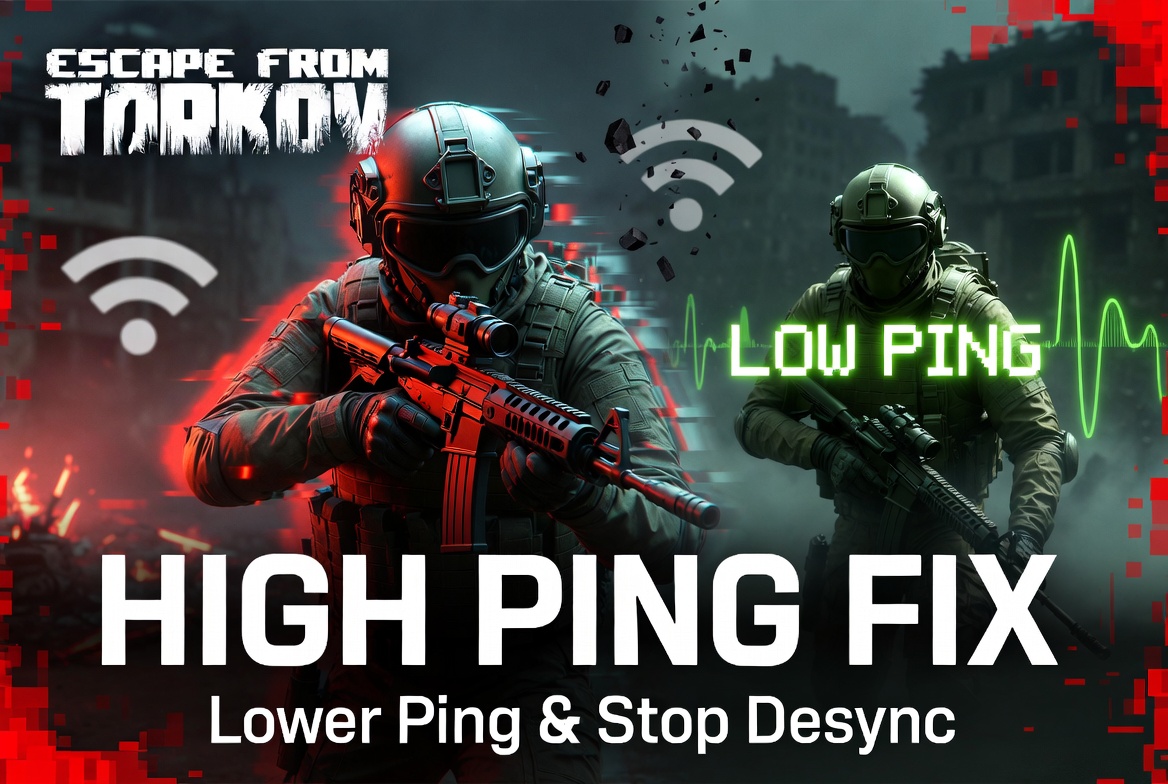
Nothing in gaming is more punishing than Escape from Tarkov with high ping. One moment you are carefully clearing a hallway in Labs, the next you are dead to someone you never even saw peek the corner — all because desync and latency gave them a full second of advantage. Tarkov is brutal enough without your connection working against you. Test your Tarkov ping now and find out if your network is the weak link in your loadout.
What Is Ping and Why It Matters in Tarkov
Ping is the round-trip time for data to travel from your PC to a Battlestate Games (BSG) server and back, measured in milliseconds. In Tarkov, this matters more than almost any other game because of two factors: the extreme time-to-kill and the devastating consequences of dying. Lose a gunfight in Fortnite and you queue up again. Lose a gunfight in Tarkov and you lose your entire kit — weapons, armor, meds, ammo, everything you brought and found. When that loss happens because of network desync rather than skill, it is genuinely infuriating.
Tarkov's netcode has been a topic of community debate since the game's earliest days. The game uses a client-authoritative model for certain actions, meaning some hit detection happens client-side before server validation. This creates a situation where a player with 20ms ping and a player with 150ms ping experience fundamentally different versions of the same fight. The high-ping player's actions arrive at the server later, but they can still see and shoot you before the server updates their position on your screen. This is the root cause of the infamous "died behind cover" moments.
There is also a hard limit: Tarkov kicks players with ping above 200ms. If your connection spikes above that threshold during a raid, you get disconnected and lose whatever progress you made. Your PMC stays in the raid for a reconnection window, but if you cannot get back in time, your character eventually gets killed by AI or other players. The 200ms cap exists to limit desync abuse, but it means players with borderline connections live in constant fear of disconnection.
Ping Levels — What's Good and What's Unplayable
| Ping (ms) | Experience in Tarkov |
|---|---|
| 0–30 | Optimal. Movements and shots register immediately. Minimal desync. You see enemies at the same time they see you. Audio cues sync properly with visual events. |
| 30–60 | Excellent. Very playable. Minor desync on aggressive peeks but largely imperceptible during normal gameplay. Close-quarters fights feel responsive. |
| 60–100 | Acceptable. You will notice slight delay on door interactions, looting, and fast peeks. PvP becomes slightly disadvantaged against lower-ping opponents. Scav boss encounters feel slightly off. |
| 100–150 | Problematic. Noticeable desync. Enemies appear to teleport slightly when sprinting. Looting containers has visible delay. You die behind cover regularly. Getting shot before hearing the gunshot becomes common. |
| 150–200 | Danger zone. Severe desync. Every gunfight is a coin flip on whose client registered the kill first. Constant risk of hitting the 200ms cap and getting kicked. Scavs may shoot you before their animations show them raising a weapon. |
| 200+ | Disconnected. Tarkov enforces a 200ms ping limit. You cannot play on this server. |
For Tarkov specifically, you want to stay under 60ms. The game's netcode amplifies even small latency differences, so every millisecond matters more here than in most shooters.
How to Check Your Ping
Method 1: Online Ping Test (Fastest)
Check your latency to BSG servers before risking your gear in a raid.
- Open NetVizor Tarkov Ping Test.
- The tool pings BSG server locations across all available regions.
- You receive latency readings for US East, US West, Europe, Asia, and more within seconds.
- Compare results to the table above and to the 200ms hard cap.
- Run the test at the times you usually play — server load varies significantly between day and night.
This tells you which servers are safe to select and which ones risk disconnection.
Method 2: In-Game
Tarkov shows your real-time FPS and ping during raids.
- In raid, press the key bound to FPS display (default varies — check your keybindings in Settings → Controls → search for "FPS").
- The overlay appears in the bottom-left corner showing FPS, ping, and sometimes packet loss.
- Watch for ping spikes during intense firefights or when many players/scavs are in your area — server load increases processing time.
Additionally, the BSG Launcher shows server ping before you enter any raid:
- Open the BSG Launcher.
- Click the server selection dropdown (bottom of the launcher, or in Settings).
- You will see a list of all available server regions with their current ping.
- Select only the servers where your ping is consistently under 100ms for the best experience.
Method 3: Command Line
For detailed diagnostics, use your terminal:
ping tarkov-server-ip
Since BSG does not publish server IPs directly, use a traceroute after connecting to identify the server address, or use NetVizor Traceroute to analyze the route to BSG server regions. This helps identify if latency issues are on your end, your ISP's routing, or the server itself.
For DNS resolution testing (relevant when the launcher takes long to connect):
nslookup prod.escapefromtarkov.com
Or use NetVizor DNS Lookup to check your DNS response time for BSG domains.
Tarkov Server Regions — Complete List
BSG operates servers across multiple regions. Here is the full breakdown:
| Region | Server Location | Expected Ping (Same Region) | Expected Ping (Cross-Region) |
|---|---|---|---|
| US East | Virginia / New York area | 10–40ms (NA East) | 80–130ms (EU), 60–90ms (NA West) |
| US West | California / Oregon | 10–40ms (NA West) | 60–90ms (NA East), 140–200ms (EU) |
| US Central | Texas / Chicago | 20–50ms (Central NA) | 40–70ms (NA East/West) |
| Europe (West) | London / Amsterdam | 10–30ms (Western EU) | 80–130ms (NA East), 40–60ms (Central EU) |
| Europe (Central) | Frankfurt / Vienna | 10–30ms (Central EU) | 90–140ms (NA East), 30–50ms (Western EU) |
| Europe (East) | Moscow / St. Petersburg | 10–30ms (Russia/Eastern EU) | 50–80ms (Central EU), 130–180ms (NA) |
| Asia (East) | Seoul / Tokyo | 10–40ms (Korea/Japan) | 150–250ms (NA), 180–280ms (EU) |
| Asia (SE) | Singapore / Hong Kong | 10–40ms (SEA) | 160–260ms (NA), 150–230ms (EU) |
| Oceania | Sydney | 10–40ms (AU/NZ) | 150–250ms (NA West), 250–350ms (EU) |
| South America | Sao Paulo | 10–50ms (Brazil) | 120–180ms (NA East), 200–280ms (EU) |
Critical tip: Only select servers where your ping is reliably under 150ms. The 200ms kick threshold does not have a grace period — one spike above it and you are out. If a server shows 140ms in the launcher, a peak-time spike could easily push you over 200ms.
Why Your Ping Is High — 10 Common Causes
Server distance. The most fundamental factor. If you are in Oceania trying to play on European servers, you are fighting physics. Select the closest server region in the launcher.
Server overload during events. Wipe days, special events, and weekend peaks cause BSG servers to struggle. Server-side processing time increases, which adds to your effective latency.
Wi-Fi instability. Tarkov is especially sensitive to Wi-Fi packet loss because the game constantly streams data about player positions, loot states, and AI behavior. One dropped packet can cascade into a desync event.
Too many server regions selected. If you have "auto" server selection or many regions checked in the launcher, matchmaking might put you on a distant server. Manually select only your closest 2-3 servers.
Background bandwidth consumption. Tarkov does not need much bandwidth (2-5 Mbps is sufficient), but if your connection is saturated by downloads, streaming, or other devices, packet queuing adds latency.
ISP routing inefficiency. Your ISP may route traffic through suboptimal paths. A traceroute can reveal unnecessary hops that add 20-50ms of latency that should not be there.
Tarkov client memory issues. After extended play sessions, Tarkov can develop memory leaks that slow down network packet processing. The game's RAM usage climbs over time, especially on maps like Streets of Tarkov.
Outdated network drivers. Old network adapter drivers can have bugs in packet handling that add latency, especially under the sustained load that Tarkov creates.
VPN or proxy interference. If you use a VPN, every packet takes an extra hop through the VPN server. Even fast VPNs add 10-30ms. Some players use VPNs to access different server regions, but this often hurts more than it helps.
DNS delays. Slow DNS resolution can affect the initial connection to BSG servers and occasionally cause mid-session lookups. Verify with NetVizor DNS Lookup.
How to Fix High Ping — Complete Guide
Manually select servers in the launcher. Open the BSG Launcher, go to server selection, and uncheck everything except your 2-3 closest servers. This prevents matchmaking from sending you across the globe.
Use wired Ethernet. Tarkov is too network-sensitive for Wi-Fi. A Cat6 cable eliminates wireless interference, reduces packet loss, and can drop your ping by 5-15ms. Powerline adapters are a decent alternative if running a cable is impractical.
Close all background applications. Before launching Tarkov, close browsers, Discord video calls, cloud sync (OneDrive, Google Drive, Dropbox), and streaming services. Use Task Manager to identify hidden bandwidth consumers.
Restart Tarkov regularly. After 3-4 raids (or if your RAM usage exceeds 12GB), restart the game. Tarkov's memory management is imperfect, and accumulated memory pressure can slow network processing.
Optimize your DNS. Switch to Cloudflare (1.1.1.1) or Google (8.8.8.8) DNS. This speeds up initial connection and can improve routing to BSG servers. Verify with NetVizor DNS Lookup.
Update network drivers. Visit your motherboard or network adapter manufacturer's website for the latest drivers. Intel and Realtek release updates regularly that fix latency-related issues.
Disable Nagle's algorithm on Windows. Navigate to HKEY_LOCAL_MACHINE\SYSTEM\CurrentControlSet\Services\Tcpip\Parameters\Interfaces, find your active network adapter, and set TcpNoDelay to 1 (DWORD). This stops Windows from batching small packets.
Set TcpAckFrequency to 1. In the same registry path, add TcpAckFrequency as a DWORD set to 1. This forces immediate TCP acknowledgments rather than delayed ones.
Enable QoS on your router. Prioritize your gaming PC's traffic in your router settings. Most modern routers have a gaming QoS preset, or you can manually assign high priority to your PC's MAC address.
Check for packet loss with traceroute. Run a Traceroute to identify if specific hops are adding disproportionate latency. If packet loss occurs at an ISP node, contact them with the evidence.
Advanced Fixes
Registry-level TCP optimization. Beyond Nagle and TcpAckFrequency, consider setting DefaultTTL to 64 and disabling Tcp1323Opts if your connection is already stable. These reduce packet overhead slightly.
QoS with DSCP tagging. If your router supports DSCP, tag your gaming traffic with EF (Expedited Forwarding, DSCP 46). This tells intermediate routers to prioritize your game packets over regular traffic.
ISP-specific routing fixes. Some ISPs (especially cable providers) have known routing issues to BSG server locations. Running a detailed Traceroute and sharing results on Reddit's r/EscapefromTarkov can help identify if others with your ISP share the same problem. Sometimes switching DNS providers changes your ISP's routing path.
Dedicated network for gaming. If you share your network with family or roommates, consider setting up a separate VLAN or network segment for your gaming PC. This prevents other devices' traffic from causing buffer bloat on your connection.
Windows network stack reset. If your ping suddenly increased and you cannot find the cause, try resetting your network stack: open Command Prompt as admin and run netsh winsock reset followed by netsh int ip reset, then restart your PC.
Tarkov-Specific Settings That Affect Ping
PvE mode vs PvP mode. PvE (offline co-op) mode uses different servers than standard PvP raids. If your PvE ping is fine but PvP ping is high, the PvP server you are connecting to might be further away or more loaded. Check your server selection for both modes.
Arena mode. Tarkov Arena uses its own server infrastructure, separate from the main game. Your Arena ping might differ significantly from your raid ping. Check the Arena server selection separately.
Graphics settings and network interaction. While graphics settings do not directly affect ping, if your system is GPU-bound and frames drop below 60, input delay increases. This combines with network latency to make the game feel even more sluggish. Keep your FPS above 60 at minimum by lowering settings like Shadow Quality, SSAO, and Grass Shadows.
Auto-RAM cleaner. Enable "Use only the physical cores" and "Auto RAM cleaner" in Tarkov's game settings. This helps prevent the memory-related performance degradation that can slow network packet processing during extended sessions.
Post-FX settings. Disable Post-FX effects if you are running on borderline hardware. These do not affect ping directly, but they consume GPU resources that could otherwise process frame updates faster.
Map choice affects perceived latency. Streets of Tarkov, Lighthouse, and other large maps with many AI entities generate significantly more network traffic than compact maps like Factory. If you are on a marginal connection, smaller maps will feel noticeably smoother.
FAQ
What happens if my ping goes above 200ms in Tarkov? You get immediately disconnected from the raid. Your PMC remains in the raid for a reconnection window (typically a few minutes). If you can reconnect before the timer expires, you continue where you left off. If not, your PMC is eventually killed and you lose all your gear. This 200ms limit is strictly enforced and there is no way to change it.
Is Tarkov's desync a server problem or a ping problem? Both. Tarkov has acknowledged server-side netcode issues that cause desync even between low-ping players. However, higher ping dramatically amplifies desync. A player with 100ms ping experiences noticeably more desync than one with 30ms on the same server. The client-authoritative elements of Tarkov's netcode mean that ping differences between players directly translate to combat advantages.
Does a gaming VPN help with Tarkov ping? Rarely. VPNs add an extra network hop that typically increases ping. The only scenario where a VPN helps is if your ISP has particularly bad routing to BSG servers — the VPN might find a faster path. Test both with and without. If the VPN does not reduce your ping by at least 15ms, it is hurting you.
Why is my Tarkov ping fine in the launcher but spikes during raids? The launcher ping test measures latency to an idle server. During a raid, the server is processing AI behavior, player interactions, loot spawns, and ballistic calculations. Heavy server load increases processing time, which adds to your effective ping. Peak hours and large maps make this worse.
Does the Arena have different servers than the main game? Yes. Tarkov Arena runs on separate server infrastructure. Your ping to Arena servers may differ from your main game servers. Check both in their respective launchers/menus and select appropriate regions for each.
Will upgrading my internet speed help with Tarkov ping? Tarkov uses very little bandwidth (2-5 Mbps). Upgrading from 50 Mbps to 500 Mbps will not lower your ping. However, if your current plan is frequently saturated by other devices, upgrading gives more headroom. Check your speeds with NetVizor Internet Speed to confirm you are getting what you pay for.
Conclusion
Tarkov punishes high ping harder than almost any other game — the combination of permadeath stakes, client-authoritative netcode, and the 200ms kick limit means your network connection is literally part of your survival kit. Start by testing your Tarkov ping to know your baseline, then carefully select only your best servers in the launcher. Work through the fixes above, starting with the basics (Ethernet, background apps, DNS) and progressing to advanced tweaks (registry, QoS, ISP routing analysis).
For deeper diagnostics, use Traceroute to find problem hops and DNS Lookup to verify your DNS is not adding delay. And if you play other tactical shooters, check out the CS2 Ping Test or Warzone Ping Test to compare your experience.
Related Articles
 Guide
GuideEA FC 26 (FIFA) Ping Test — Fix High Lag & Reduce Latency
Discover how to fix high ping in EA FC 26 and reduce lag in FUT matches. Test your connection now and improve gameplay.
 Guide
GuideMinecraft Server Ping Test — Fix High Ping and Lag
Discover how to fix high ping and lag in Minecraft servers to enhance gameplay. Learn about ping, its impact, and solutions.
 Guide
GuideDiablo 4 High Ping Fix — Lower Latency on PC and Console
Discover how to fix high ping in Diablo 4 and enjoy smoother gameplay on PC and console with our expert tips.